Featured

OAUTH phishing against Google Docs ? beware!

Published: 2017-05-03
Last Updated: 2017-05-03 19:54:08 UTC
by Bojan Zdrnja

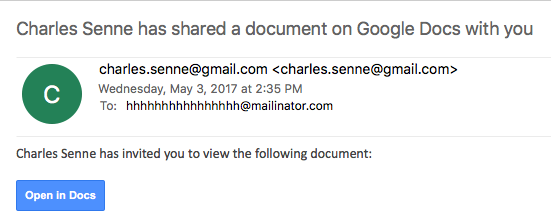
We got several reports (thanks to Seren Thompson, Tahir Khan and Harry Vann) about OAUTH phishing attacks against Google users. The phishing attack arrives, of course, as an e-mail where it appears that a user (potentially even one on your contact list, so it looks very legitimate) has shared a document.
An image of such an e-mail is shown below:

Phishing email
If you click on the link (Open in Docs), you will be redirected to the OAUTH2 service on accounts.google.com – the target URL will look like this:

hxxs://accounts.google.com/o/oauth2/auth?client_id=1535050614-8i934kb9l0snc0iocqb0iv27lli0r858.apps.googleusercontent.com&scope=https%3A%2F%2Fmail.google.com%2F+https%3A%2F%2Fwww.googleapis.com%2Fauth%2Fcontacts&immediate=false&include_granted_scopes=true&response_type=token&redirect_uri=hxxps%3A%2F%2Fgoogledocs.g-docs.win%2Fg.php&customparam=customparam

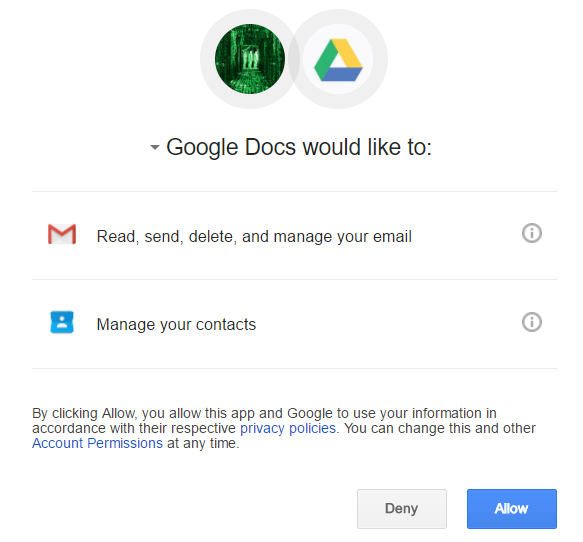
In browser, this is what you get:


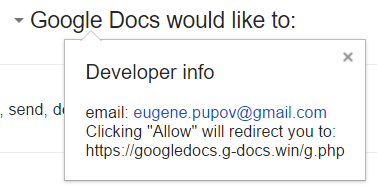
As you can see, it appears as Google Docs wants full access to my Gmail as well as my contacts. Of course, this is not real Google Docs – the attacker has simply named his “application” Google Docs – this can be verified by clicking on the Google Docs text where the real web site behind this and developer info is shown:

Obviously, once you allow access it is game over – the attacker probably uses the phishied Gmail account to further distribute phishing e-mails – we’ll see if we can get more details.

So far at least the following domains are included:
googledocs.g-docs.win
googledocs.g-docs.pro

The domains are definitely malicious – the URL leads to jsserver.info where a fake alert that the computer is infected is shown.

UPDATE:

There are more domains – they all just change the TLD’s for googledocs.g-docs.X or googledocs.docscloud.X. Most of them (if not all) appear to have been taken down (thanks @Jofo).

It also appears that Google has reacted quickly and are now recognizing e-mails containing malicious (phishing) URL’s so the message “Be careful with this message. Similar messages were used to steal people’s personal information. Unless you trust the sender, don’t click links or reply with personal information.” will be shown when such an e-mail is opened.

Finally, if you accidentally clicked on “Allow”, go to https://myaccount.google.com/u/0/permissions?pli=1 to revoke permissions.


Bojan
@bojanz
INFIGO IS

Featured

CAA Records and Certificate Issuance

by Johannes Ullrich

[This is a guest diary submitted by J. Edward Durrett, GCUX]

While going over an SSL report from SSL Labs [1], I noticed something that I had not seen before: a check for CAA records. Certification Authority Authorization (CAA) is a DNS record which restricts which Certificate Authority can issue a certificate for a given domain [2]. Let’s say I get all my Certificates for example.org from Certificate_authority.com. I can specify in my DNS that only Certificates issued by Certificate_authority.com are valid for my domain. This is done with a CAA record, which looks like this in my domain’s zone le:

example.org. CAA 0 issue "certificate_authority.com"

CAA support is going to become a mandatory standard in Certificate issuance in September 2017 [2]. That means, in the process of Certificate issuance, it will be mandatory that the the Certificate Authority check for the existence of CAA records for the domains they are issuing Certificates to [3] [4]. Consequently, if you don’t have a properly formatted CAA record for your domain, you might not get a Certificate.

Although it remains to be seen how Certificate Authorities implement this standard, failure to have a CAA record for a domain, or having an improperly formatted CAA record, may cause automated Certificate management to fail unexpectedly. This, of course would leave sites with expired/missing Certificates.

For sites running their own DNS, adding a CAA record to the zone is all that is needed. Current versions of BIND, for example, support CAA records so this can be done now. Procedures and scripts for setting up new domains need to be updated to reflect the additional step of adding CAA record before attempting to obtain a Certificate. In addition, in the event of changing Certificate Authorities, the CAA record would also need to be updated to reflect the new issuer.

For organizations that rely on third party DNS providers, the case is different. From a quick search of support pages, I only found a couple that support CAA records [5] [7]. That will probably change as September gets closer, but having a backup plan is never a bad idea.

The best reference document for I found CAA is RFC 6844 DNS Certi cation Authority Authorization (CAA) Resource Record [3]. The example I have above will work for most sites. The structure of a CAA is like this:

 CAA   

There are some things to note. It is possible for a domain to have more than one CAA record:

example.org. CAA 0 issue "letsencrypt.org"
example.org. CAA 0 issue "comodo.com"

This would allow a Certificate to be issued from letsencrypt.org or comodo.com. This is useful in cases where the Certificate for the smtp server is issued by letsencrypt.org and the web server uses one from comodo.com.

There are three properties which can be specified issue, issuewild, or iodef [3]. issue means a Certificate Authority is allowed to issue a Certificate for the domain. To completely bar Certificates being issued for a domain, this configuration is possible:

example.org. CAA 0 issue ";"

To only allow wild card Certificates, ones that would match *.example.org, to be issued, the issuewild property is used:

example.org. CAA 0 issuewild "certificate_authority.com"

For reporting, the iodef property can be specified. This tells the Certificate authority to send a report to either an email or an http/https service [3]:

example.org. CAA 0 issue "certificate_authority.com"
example.org. CAA 0 iodef "mailto:security@example.org"
example.org. CAA 0 iodef "https://iodef.example.org/"

In the above example, Certificate_authority.com can issue a Certificate for example.org and then Certificate_authority.com is directed to send an IODEF incident report to security@example.org and to the web service at https://iodef.example.org.

In all of the configuration examples above the flag is set as 0. Setting the flag to 128 instructs the Certificate Authority that the property is critical [3]. That is, the Certificate Authority must understand the property before issuing a Certificate.

Each Certificate Authority has some latitude to determine additional information, such as the type of Certificate or an account number, that can be specified in CAA records [3]. So it is important to check the documentation with the relevant issuer and to keep abreast of changes during implementation. And, as with everything, always test these configurations before putting them into production.

The go-to tool on Linux for checking DNS records is dig. However, dig does not yet support CAA records with the -t flag, so to check a domain type257 needs to be specified [5]:

$dig google.com type257
;; QUESTION SECTION:
;google.com.

IN TYPE257

;; ANSWER SECTION:
google.com.
0005697373756573796D616E7465632E636F6D
google.com.             86399   IN
00056973737565706B692E676F6F67
$drill google.com CAA

;; QUESTION SECTION:
;; google.com. IN CAA

;; ANSWER SECTION: google.com. 86400 IN CAA google.com. 86400 IN CAA

0 issue "pki.goog"
0 issue "symantec.com"

86399

IN

TYPE257 \# 19
TYPE257 \# 15

By piping the encoded output through xxd, we can see the property and issuer the record specifies:

$echo "00056973737565706B692E676F6F67" | xxd -r -p
issuepki.goog

The drill utility, found on FreeBSD, does support querying CAA records:

There is also a program written in Go called dnscaa which can be found on GitHub [6].

I searched through several domains looking for CAA records. This was not an exhaustive or scientific search, just a handful of domains. Outside of Certificate Authorities like Comodo and Symantec, Google was the only domain I found with CAA records. Considering that Let’s Encrypt alone has issued Certificates for close to 35 Million domains [8], there is likely a significant portion of administrators who have not published CAA records. As issuers reach out to their customers, I would expect to see more records published in the coming months.

The addition of CAA records to DNS and the critical role they will play in Certificate issuance makes an already key part of infrastructure even more valuable. Both the suppression and spofing of records being sent to the Certificate Authorities could result in an attacker obtaining an unauthorized Certificate or causing a denial of service condition [3]. Communicating with Certificate Authorities certainly would justify a method of signing and validating DNS records. Luckily, there already is such a method – DNSSEC.

Interestingly, this may ( finally!) encourage the wide spread adoption of DNSSEC. Although RFC 6844, says in section 4.1 the use of DNSSEC “is strongly RECOMMENDED but not required”, it goes on to say in section 6.4 “Where possible, issuers SHOULD perform DNSSEC validation to detect missing or modified CAA record sets.” [3]. If deploying DNSSEC is something that you have been putting o for the last 20 years, this might be a good time to revisit.

In conclusion, the CAA record type is relatively new to DNS yet with up to date infrastructure in place it is fairly easy to implement. The lack of CAA support by third party DNS providers might prove challenging for some organizations. As issuers roll out their policies for CAA validation, the impact of RFC 6844 will become clearer. There is plenty of time between now and September to test and adopt procedures for dealing with CAA and its role in Certificate issuance.

J. Edward Durrett, GCUX

[1] https://www.ssllabs.com/ssltest/index.html
[2] https://blog.qualys.com/ssllabs/2017/03/13/caa-mandated-by-cabrowser-forum [3] https://tools.ietf.org/html/rfc6844
[4] https://cabforum.org/pipermail/public/2017-March/009988.html
[5] https://support.dnsimple.com/articles/caa-record/
[6] https://github.com/weppos/dnscaa
[7] https://cloud.google.com/dns/overview#supported_dns_record_types
[8] https://letsencrypt.org/stats/

Featured

The Dark Side of Certificate Transparency

by Johannes Ullrich

I am a big fan of the idea behind Certificate Transparency [1]. The real problem with SSL (and TLS… it really doesn’t matter for this discussion) is not the weak ciphers or subtle issues with algorithms (yes, you should still fix it), but the certificate authority trust model. It has been too easy in the past to obtain a fraudulent certificate [2]. There was little accountability when it came to certificate authorities issuing test certificates, or just messing up, and validating the wrong user for a domain based on web application bugs or social engineering [3][4].

With certificate transparency, participating certificate authorities will publish all certificates they issue in a log. The log is public, so you can search if someone received a certificate for a domain name you manage.

You can search certificate transparency logs published by various CAs directly, or you can use one of the search engines that already collect the logs and use them to search [1].

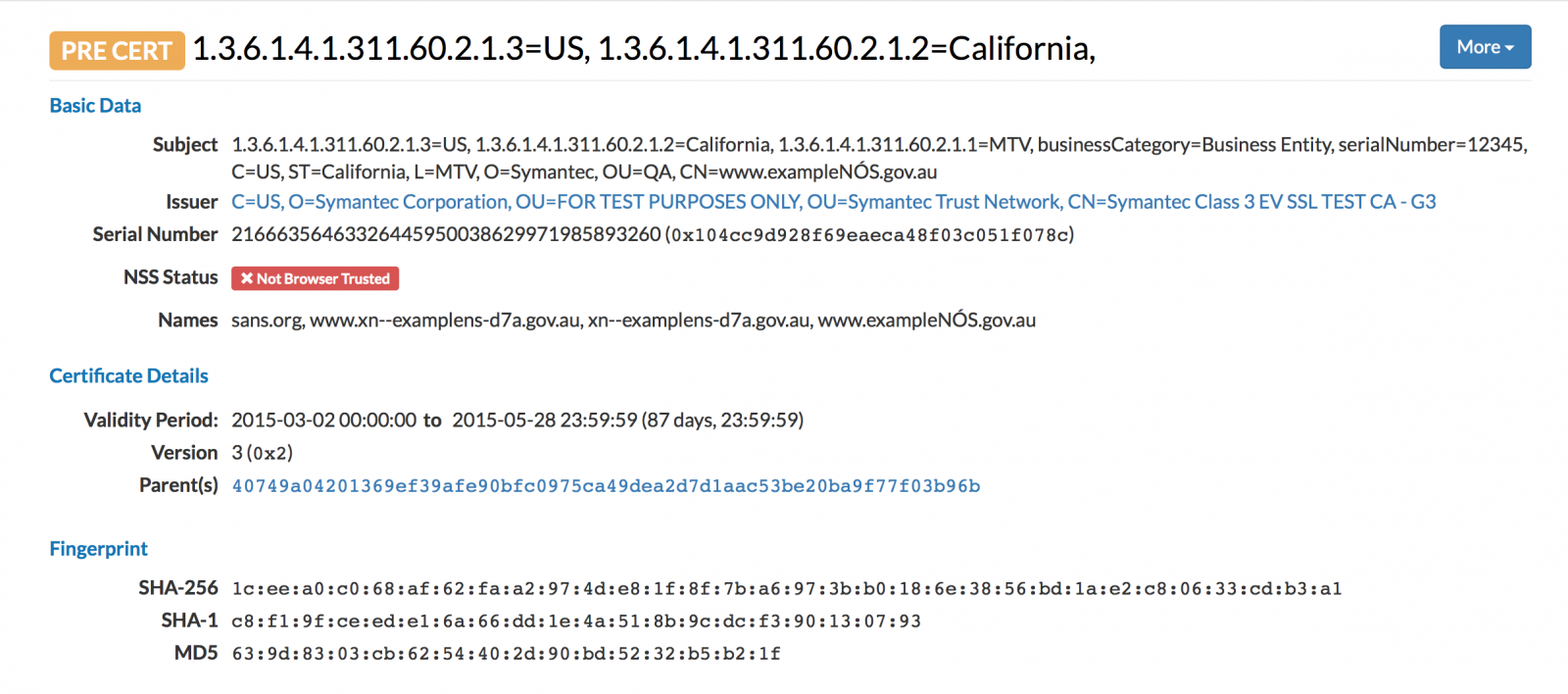
For example, here is an “interesting” certificate for “sans.org”, issued by the infamous Symantec test CA [5].

So what is the “dark side” part?

Many organizations obtain certificates for internal host names that they do not necessarily want to be known. In the past, internet wide scans did catalog TLS certificates, but they only indexed certificates on publicly reachable sites. With certificate transparency, names may leak that are intended for internal use only. Here are a few interesting CNs I found:

vpn.miltonsandfordwines.com
upstest2.managehr.com
mail.backup-technology.co.uk

To find these, I just searched one of the Certificate Transparancy Log search engine, crt.sh , for “internal”.

There are currently two options considered to “fix” this problem:

– Allow customers to opt out of having their certificate logged. This is a bad idea. Malicious customer would certainly opt out.

– Redact sub-domain information from the log. This is currently in the works, but the current standard doesn’t support this yet. In the long run, this appears to be a better option.

But you should certainly regularly search certificate transparency logs (or any scans for SSL certificates) for your domain name to detect abuse or leakage of internal information.

[1] https://www.certificate-transparency.org
[2] https://security.googleblog.com/2015/03/maintaining-digital-certificate-security.html
[3] http://oalmanna.blogspot.ro/2016/03/startssl-domain-validation.html
[4] https://thehackerblog.com/keeping-positive-obtaining-arbitrary-wildcard-ssl-certificates-from-comodo-via-dangling-markup-injection/index.html
[5] https://censys.io/certificates/1ceea0c068af62faa2974de81f8f7ba6973bb0186e3856bd1ae2c80633cdb3a1

Installing OpenSSL on CentOS 7

OpenSSL is a robust, commercial-grade, and full-featured toolkit for the Transport Layer Security (TLS) and Secure Sockets Layer (SSL) protocols. It is also a general-purpose cryptography library.

OpenSSL is used by many programs like Apache Web serverPHP, and many others providing support for various cryptographic algorithms such as ciphers (AES, Blowfish, DES, IDEA etc.), and cryptographic hash functions (MD5, MD4, SHA-1, SHA-2 etc.)

In this guide, we are going to install the latest version of OpenSSL on CentOS 7.

Updating System Packages on CentOS
It is always recommended that you update the system to the latest packages before beginning any major installations. This is done with the command below:

yum update

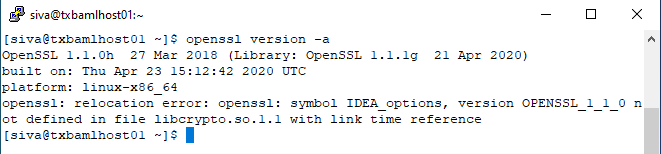
Before we begin our installation, you can check the version of OpenSSL installed on your server by issuing the command below:

openssl version -a

Step 1: Install Development Tools
The “Development tools” are a yum group, which is a predefined bundle of software that can be installed at once, instead of having to install each application separately. The Development tools will allow you to build and compile software from source code. Issue the command below to install:

yum group install 'Development Tools'

Issue the following command below to install other necessary packages and libraries.

yum install perl-core zlib-devel -y

Step 2: Download OpenSSL
Next, we are going to download OpenSSL from the source (getting the latest version which at the time of writing this guide, the latest stable version is the 1.1.1 series).

cd /opt/downloads
wget https://www.openssl.org/source/openssl-1.1.1g.tar.gz

Next, extract the downloaded file into /opt using the command below:

tar -xf /opt/downloads/openssl-1.1.1g.tar.gz

Next, navigate to the extracted directory.

cd /opt/openssl-1.1.1g

Step 3: Install OpenSSL
We are now going to install the latest version of OpenSSL which we downloaded using the command below:

./config --prefix=/usr/local/ssl --openssldir=/usr/local/ssl shared zlib
make
make test
make install

Step 4: Configure OpenSSL Shared Libraries
Naviagate to the /etc/ld.so.conf.d directory and create a new configuration file ‘openssl-1.1.1c.conf’. Remove or move the previous version config files.

cd /etc/ld.so.conf.d/
nano openssl-1.1.1g.conf

 Enter the following:

/usr/local/ssl/lib

Ensure to save before you exit.

Next, reload the dynamic link by issuing the command below:

ldconfig -v

Step 5: Configure OpenSSL Binary
In our final configuration, we are going to insert the binary of our new version of OpenSSL installed (located at /usr/local/ssl/bin/openssl) to replace the default openssl binary (located at /usr/bin/openssl or /bin/openssl).

First, backup the default OpenSSL binary files.

mv /bin/openssl /bin/openssl.backup

Next, create new environment files for OpenSSL:

nano /etc/profile.d/openssl.sh

Enter the following:

#Set OPENSSL_PATH
OPENSSL_PATH="/usr/local/ssl/bin"
export OPENSSL_PATH
PATH=$PATH:$OPENSSL_PATH
export PATH

Ensure to save before you exit.

Next, make the openssl.sh file executable by issuing the command below:

chmod +x /etc/profile.d/openssl.sh

Next, reload the OpenSSL environment and check the PATH bin directory using commands below:

source /etc/profile.d/openssl.sh
echo $PATH

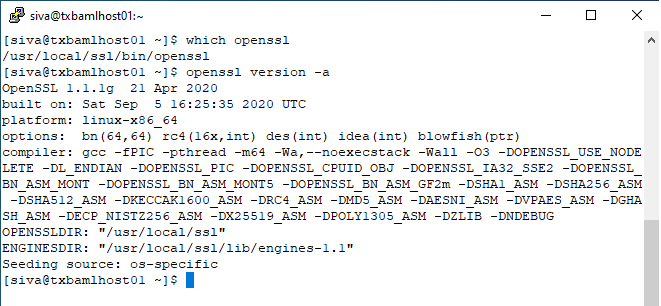
We can now check and verify our installation of the latest stable version of OpenSSL using the command below:

 which openssl
 openssl version -a